35 Berkeley Square
London W1J 5BF
United Kingdom
Company Number: 09747305
During one of our audits of a financial portal, the screen looked clean. WAVE reported zero errors. axe DevTools reported zero errors. By the numbers, the page was done.
Then our accessibility engineer put the mouse aside and pressed Tab.
She moved through the form field by field until she reached the button for adding a new fund identifier. The focus skipped right past it. With a mouse, the button worked fine. With a keyboard, it didn't exist. And without that identifier the form couldn't be submitted, so a keyboard user couldn't add a fund at all.
Neither scanner flagged it. Manual testing of that one screen found a long list of issues, most of them rated major.
The short answer: automated accessibility tools are fast, useful and necessary, but they only check what a machine can measure in the code. They can't tell whether a person can actually use the page. Industry estimates put automated coverage at roughly 30–40% of accessibility issues. The rest, often the issues that block users completely, only show up when a person tests with a keyboard and a screen reader.
Let's be fair to the tools first. We use them on every project: WAVE, axe DevTools and UsableNet's AQA are all excellent at finding issues that can be detected from the code:
images with no alternative text
form fields with no programmatic label
buttons with no accessible name, such as an icon-only button
text that fails the 4.5:1 contrast ratio
missing page language, duplicate IDs, broken ARIA attributes
headings that skip levels
These are quick wins, and catching them automatically means your testers' time goes into the harder problems. Every audit should start with a scan. The problem starts when it ends there too.
How much a scanner catches depends on how you count. Measured against WCAG's success criteria, automation can fully test only a minority: estimates usually range from 20% to 40%. Deque, which makes axe, measured by volume of issues across 2,000+ audits and put the figure at 57%. Either way, a large share of problems needs a person, and those are often the most serious ones.
There are three structural reasons.
1. A scanner checks whether something exists, not whether it makes sense.
It can tell that an image has alt text. It can't tell that the alt text says "image_final_v2.png". It can tell that a button has a label. It can't tell that the label is "Click here".
2. A scanner sees one state of the page.
It scans what's on the screen at that moment. Open a dropdown, trigger a validation error or expand a panel, and new issues appear. In one of our tests, a contrast error on a "Required" field label only showed up after we interacted with the form. After a page refresh, the same scan came back clean. Unless someone scans every state - every dropdown, every error, every modal - those issues stay invisible.
3. Different tools find different things.
On the same screen, WAVE reported 8 errors and axe DevTools reported 7. Neither is wrong; they use different rules. That's why we always run more than one.
A scanner can check… | Only a person can judge… |
Does the image have alt text? | Does the alt text describe the image meaningfully? |
Is the field linked to a label? | Does the label tell you what to type? |
Does the button have a name? | Do you know what the button will do? |
Is the contrast ratio at least 4.5:1? | Is the text readable at 200% zoom on a phone? |
Is the element focusable in code? | Can you reach it, use it and leave it with a keyboard? |
Does the table have headers? | Can a screen-reader user understand the table? |
These come from real manual testing on financial platforms. None of them would show up in an automated report.
1. Controls you can't reach with a keyboard
This is the fund-identifier button from the start of this article. It looked and worked like a button for mouse users, but it wasn't in the keyboard's Tab order. The code was valid, so the scanner had nothing to flag. For anyone who navigates by keyboard - people with motor impairments, many screen-reader users, power users - the whole workflow stopped there.
2. Workflows that can't be completed
A single unreachable control can block an entire journey. If a required field in a modal can't be filled in, the modal can't be submitted, and the user can't move to the next step. Scanners check pages one at a time. They don't know that step three depends on step two.
3. Tables that make no sense when read aloud
Financial products are full of tables. With a screen reader, our engineer entered one and heard…nothing, then a single column heading: "Identifier." No table name, no context, no idea what the data was about. The table had headers, so technically it passed, but in practice - it was useless.
4. Noise that wears users out
Some problems are about what a screen reader says too much. A step indicator with large decorative numbers (1, 2, 3) can be read out twice: once as a number, once as the step label. An "info" icon gets announced as "info" right before the information it introduces. Each case is small, but together they make a page slow and tiring to use. Only a person can decide what's decorative and should be hidden.
5. Focus that disappears or jumps
When you Tab through a page, you need to see where you are. Custom-styled components often remove the focus outline, or move focus to an unexpected place after a dialog closes. A scanner can't follow focus through a workflow, so it can't tell you whether the order makes sense.
6. Layouts that break when text gets bigger
We test every screen at 320 px wide and with text enlarged to 200%. Many people over 40 set a larger font on their phone; our engineer's own father does. On a lot of sites, that setting makes text overlap and buttons disappear off-screen. A scanner checks the default view, so it never sees what these users see.
"A plugin will tell you about the most obvious errors. But it won't tell you that an element can't be focused - that you can't get into it, click it or complete the action."
— Monika Duda, Front-end Developer and Accessibility Specialist, Authentic Digital
Users
The issues scanners miss are often the ones that stop people completely: they can't log in, can't submit, can't finish a transaction.
Legal risk
The ADA looks at outcomes: can people with disabilities actually use your service? A clean scan report isn't proof of that.
Procurement
Buyers increasingly ask how accessibility was tested. Texas rules (TAC 206), for example, put weight on showing your test methods, not just the results. An Accessibility Conformance Report (VPAT) that lists "automated scan" as its only method won't convince an experienced reviewer.
A reliable accessibility test combines four layers:
Automated scans with more than one tool, repeated in every state of the page: dropdowns open, errors shown, modals active.
Keyboard-only testing of every user journey, end to end. Can you reach everything, see where you are, and finish the task?
Screen-reader testing with the tools people actually use: VoiceOver on Mac and iPhone, NVDA on Windows. (NVDA is free and more reliable than Windows' built-in Narrator.)
Zoom and mobile testing: 320 px width, text at 200%, portrait and landscape.
We also test at three levels: individual components, then screens and workflows (accessible components can break when combined), then the whole product across devices and browsers.
At Authentic Digital, automated scans are where our audits start, not where they end. Our engineers test your key journeys by hand with a keyboard and screen readers, rank every issue by severity, and work with your developers to fix it in the code. Then we retest, so you know the fix works for real users, not just for the scanner.
Let's check. We'll test one key journey in your product by hand and show you what the tools missed.
Are automated accessibility tools worth using?
Yes. They're fast and catch many common issues early. Use them in development and in your build pipeline, but don't treat a clean result as proof of accessibility.
Which automated tool is best
There's no single best one. WAVE, axe DevTools and others use different rules and often report different results on the same page, so use at least two.
Can an overlay or AI widget fix what scanners miss?
No. Overlays can't make an unreachable button reachable or explain a table that has no context. These fixes have to happen in the code.
Do we need to hire screen-reader users to test?
Testing with disabled users is valuable, especially for complex products. But trained testers using assistive technology can find most barriers, and much sooner.
Sources:
Workshop "Accessibility Explained" (Monika Duda, front-end developer at Authentic Digital): automated testing slide, 30-40% coverage
Learn how we have managed to aid business initiatives around software products
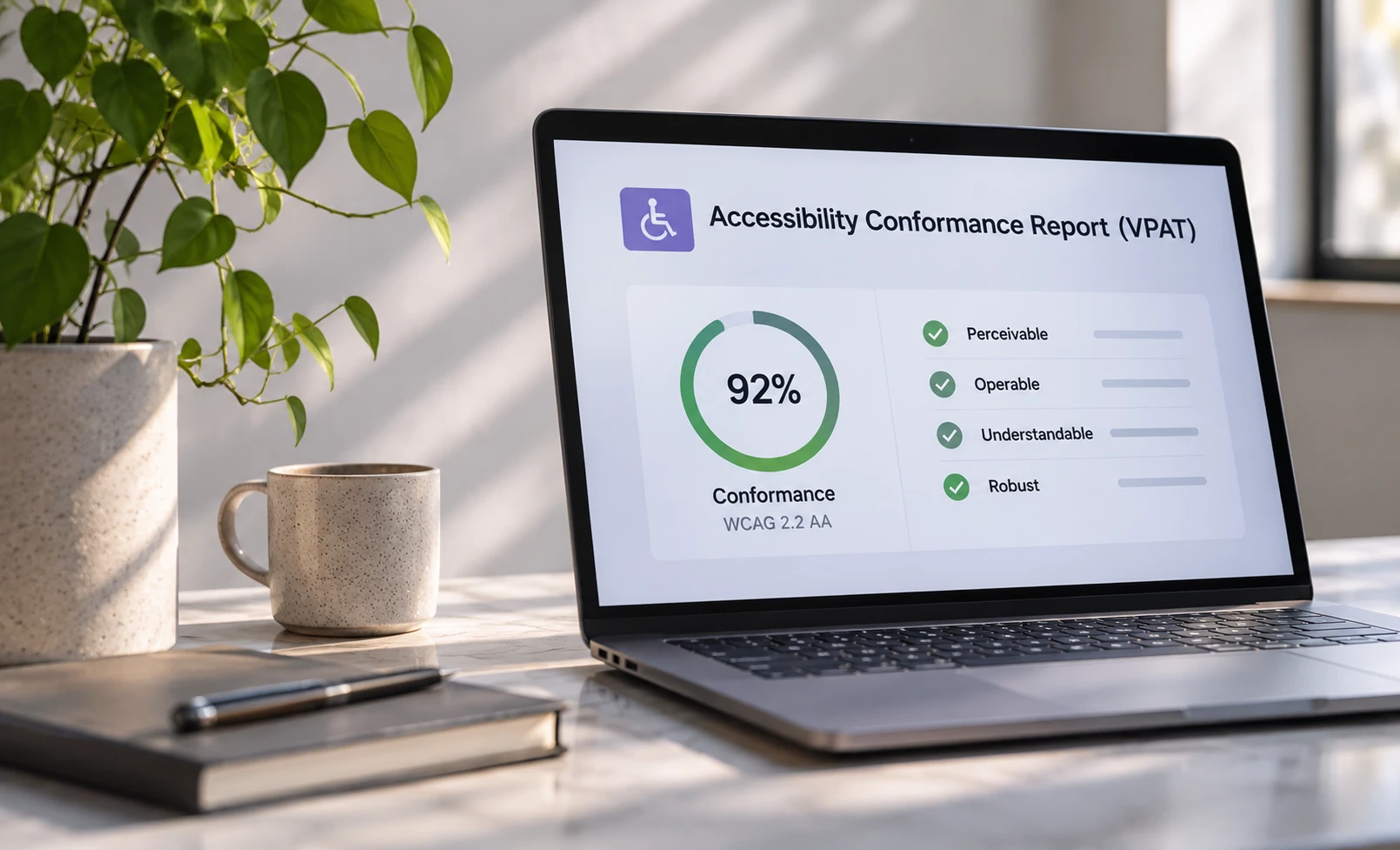
A client sends a questionnaire, and somewhere on page three is the line: "Please provide a current VPAT for the product." It looks just like some paperwork to do, but it isn't.

WCAG is a recognized standard providing a framework for creating accessible digital content. By June 28, 2025, all companies within the EU should incorporate it.
Let’s talk about your project - we will convince you that we have right people, skills and experience.